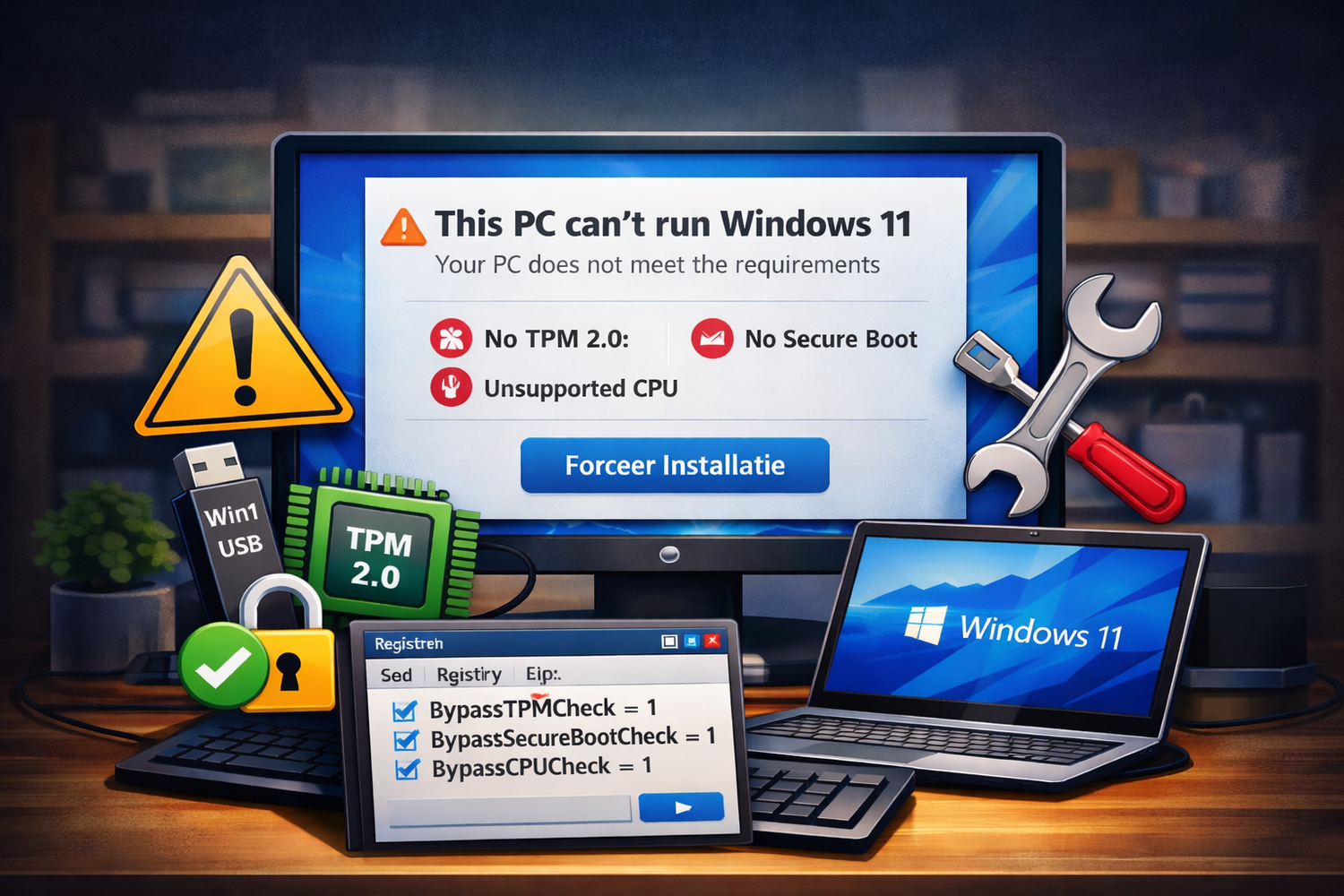
Forcing Windows 11 is the solution for many users when Windows indicates their PC doesn't meet the system requirements. This often happens with computers that are technically still perfectly functional but are rejected due to a lack of TPM 2.0, Secure Boot, or an unsupported processor. In this guide, we explain why Windows 11 is blocked and how to safely force Windows 11.
Microsoft has introduced stricter requirements for Windows 11 than for Windows 10. This leaves many older, but stable, systems out of the loop. By forcing Windows 11, you can still install the operating system without purchasing new hardware. This is especially beneficial for home users who plan to keep their PCs running for several years.
Why Windows 11 is blocked
During installation, Windows 11 checks whether your PC meets specific requirements. The main obstacles are a lack of TPM 2.0, not enabling Secure Boot, and using a processor that isn't officially listed. In many cases, these limitations are software-related and say little about the actual performance or security of the system. Therefore, many users choose to force Windows 11.
Force Windows 11 during installation
The most common method to force Windows 11 is through a registry edit during installation. Start the Windows 11 installation from a USB drive or ISO file. As soon as the message appears that your PC is not compatible, press Shift + F10. Type regedit and open the registry editor. Go to HKEY_LOCAL_MACHINE\SYSTEM\Setup and create a new key named LabConfig. Then add three DWORD values: BypassTPMCheck, BypassSecureBootCheck, and BypassCPUCheck. Set all values to 1. Close the registry editor and continue with the installation. In most cases, Windows 11 will now install without any further issues.
Force Windows 11 with Rufus
An easier way to force-install Windows 11 is using Rufus. This program creates a bootable USB drive from a Windows 11 ISO file. When creating the USB drive, you can select to skip the TPM check, Secure Boot, and CPU check. This method is especially suitable for users who prefer not to make manual registry changes. After booting from the USB drive, the Windows 11 installation process is virtually identical to that on a supported PC.
Does Windows 11 work normally after forcing
In practice, Windows 11 usually works stably and without issues after forcing it. Updates are usually received normally, and everyday software functions normally. Programs like Microsoft Office, browsers, and security software also work without problems. Please note that Microsoft reserves the right to limit support in the future, as you are installing Windows 11 outside of the official guidelines.
Risks and points of interest
While forcing Windows 11 works well technically, there are a few things to keep in mind. Always create a full backup before installing. Performance can be disappointing on very old systems, especially with older processors and slow hard drives. For business systems or computers without a backup, it's wiser to stick with Windows 10 until new hardware is available.
When is it better not to force?
Forcing Windows 11 is not recommended for computers older than about ten years or systems that are already slow. The risk is also higher for mission-critical PCs, as unexpected problems have a greater impact. In these cases, Windows 10 is often a safer choice, as this operating system will be supported until October 2025.
Windows 11 Force Restart FAQ
Many users wonder if forcing Windows 11 is legal. It's permitted because you're not bypassing a license, but simply skipping a system check. People also ask if they can revert to Windows 10. This can easily be done within ten days of installation via the recovery options. After that, a reinstallation is required.
Conclusion
Is your PC wrongly rejected for Windows 11, but is it still technically working fine? Then forcing Windows 11 is a practical solution to still use the latest operating system. By choosing the right method and creating a backup beforehand, you can safely and reliably install Windows 11 on an unsupported PC.